Dismissal Settings and Snooze

Centralized dismissal controls and the Snooze workflow for temporarily deferring findings.

Overview

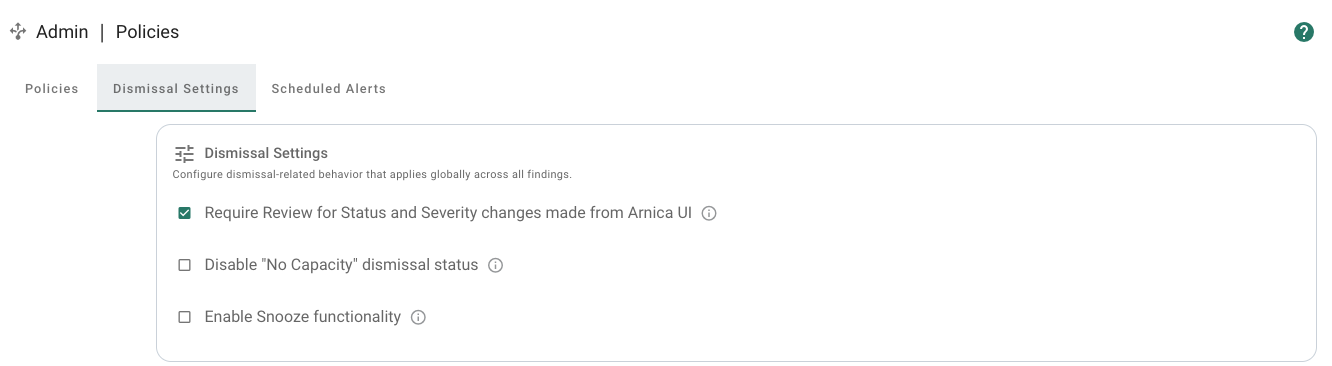
The Dismissal Settings tab in the Policies page centralizes the controls that govern how findings can be dismissed across Arnica. From this screen, security administrators can:

  • Enforce dismissal review for dismissals submitted from the Arnica UI.

  • Turn off the No Capacity dismissal status so it no longer appears in the UI, ChatOps responses, or pull request comments.

  • Enable Snooze, a time-bound dismissal that automatically re-opens a finding when the snooze period expires.

Snooze is intended for temporary deferrals — work that a team cannot tackle immediately but does not want to dismiss outright. Snoozed findings remain tracked in Arnica, are excluded from active dismissal flows for the configured number of days, and re-open automatically with optional notifications when the snooze period ends.

Where to find Dismissal Settings

In Arnica, navigate to AdminPolicies and select the Dismissal Settings tab. These settings apply globally across all findings (both secrets and code risks).

Dismissal Settings tab in the Policies page showing review, No Capacity, and Snooze controls
The Dismissal Settings tab consolidates dismissal controls in one place.

Settings

Each setting below is toggled via a checkbox in the Dismissal Settings panel. Changes are committed when you click Save Changes in the top-right corner of the panel.

Require Review for Dismissals made from Arnica UI

When enabled, the Collaborator and Product Maintainer roles can no longer directly dismiss findings from the Code Risks or Secrets pages. Instead, those roles will be given the ability to request a dismissal, and the request must be approved by a reviewer before the dismissal takes effect. Dismissal requests will be processed based on policies using the "User Dismissed Finding Via ChatOps" trigger.

This setting governs dismissals submitted directly from the Arnica UI only. For routing review requests submitted via ChatOps, see Require Review Before Dismissal.

Disable "No Capacity" dismissal status

When enabled, the No Capacity dismissal status is no longer offered as an option in:

  • The Change Status menu on the Code Risks and Secrets pages.

  • ChatOps dismissal replies (Slack and Microsoft Teams).

  • Pull request comment dismissal commands.

Findings that were previously dismissed with No Capacity retain that status and remain filterable; the setting only blocks new dismissals from being recorded with this status.

The legacy No Capacity status behaves like a permanent dismissal. Snooze is intended as the time-bound replacement for the temporary-deferral use case that No Capacity was often used for.

Enable Snooze functionality

When enabled, developers and operators can snooze findings for a defined number of days. Turning on Snooze automatically also enables Disable "No Capacity" dismissal status to avoid maintaining two overlapping temporary-deferral options

Two additional controls become available when Snooze is enabled:

Snooze for X Days

Sets the default snooze duration applied to any finding that is snoozed.

  • Default: 30

  • Allowed range: 1365

The snooze expiration date is calculated at the moment the finding is snoozed. Later changes to Snooze for X Days apply only to newly snoozed findings; already-snoozed findings keep their original expiration date.

Re-open notifications for snoozed findings

Controls whether Arnica sends a notification when a snoozed finding auto-reopens at the end of its snooze period.

Option
Behavior

No Notifications (default)

The finding silently transitions back to Open. Re-opening is still recorded in the finding timeline.

Send Instant Message

Arnica sends an instant message via ChatOps. Recipients are configured using the same instant-message selectors as the rest of the policy engine.

Notify Via Product Mapping

Recipients are resolved dynamically from the product ownership mapping for each finding. See Prioritization & Product Ownership.

Snoozing a finding

Once Enable Snooze functionality is turned on, Snooze appears as a dismissal option everywhere existing dismissal statuses are exposed.

From the Arnica UI

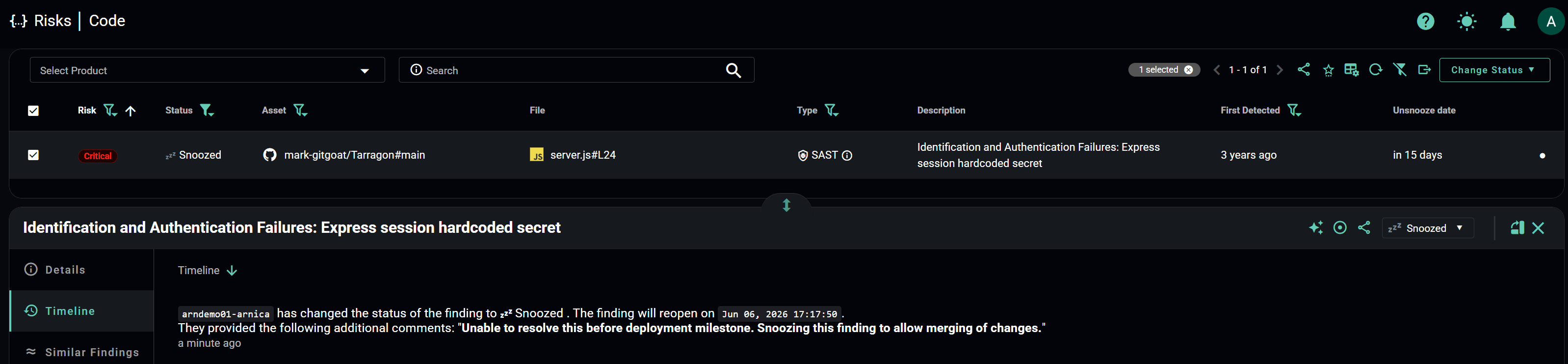
On the Code Risks or Secrets page, select one or more findings, open Change Status, and choose Snooze. Provide a justification when prompted. The finding's status transitions to Snoozed and the timeline records the expiration date.

Code Risks page showing a finding with the Snoozed status and its timeline including expiration date and ChatOps notifications
A snoozed finding shows the expiration date on its timeline.

From ChatOps

In the Slack or Microsoft Teams message for a finding, click Dismiss and pick Snooze from the dismissal-reason menu. Arnica records the justification text and snoozes the finding for the configured number of days.

From pull request comments

Arnica's pull request comments accept [arnica] commands for dismissal actions. When Snooze is enabled, snooze is added to the list of valid dismissal reasons alongside fp (false positive) and accept.

Pull request comment from the Arnica bot listing the [arnica] ack and [arnica] dismiss commands with fp, accept, and snooze options
The [arnica] dismiss snooze command becomes available once Snooze is enabled.
Reply directly to the Arnica bot's comment using one of the supported command forms:

For example:

Arnica acknowledges the dismissal in the pull request thread and updates the finding's status to Snoozed.

Re-opening snoozed findings

Arnica re-opens snoozed findings automatically when their stored expiration date is reached.

When a finding is re-opened by the system:

  • The finding's status transitions back to Open.

  • The timeline records the system-driven re-open and preserves the original snooze reason for audit.

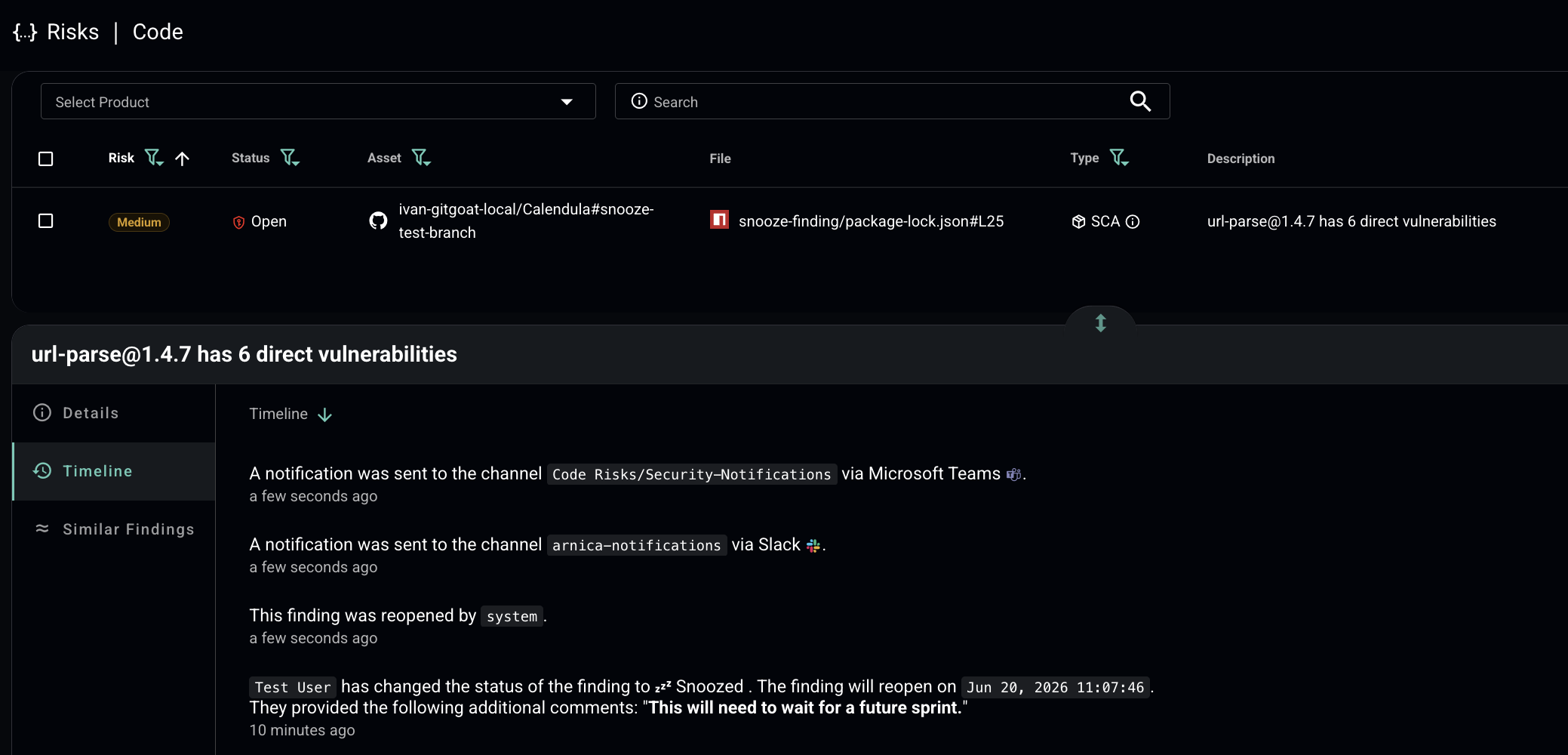
  • The re-open notification configured in Re-open notifications for snoozed findings is sent.

Finding timeline showing Snooze, system re-open, and outbound notifications via Slack and Microsoft Teams
The timeline preserves the snooze reason, expiration, and system re-open event.
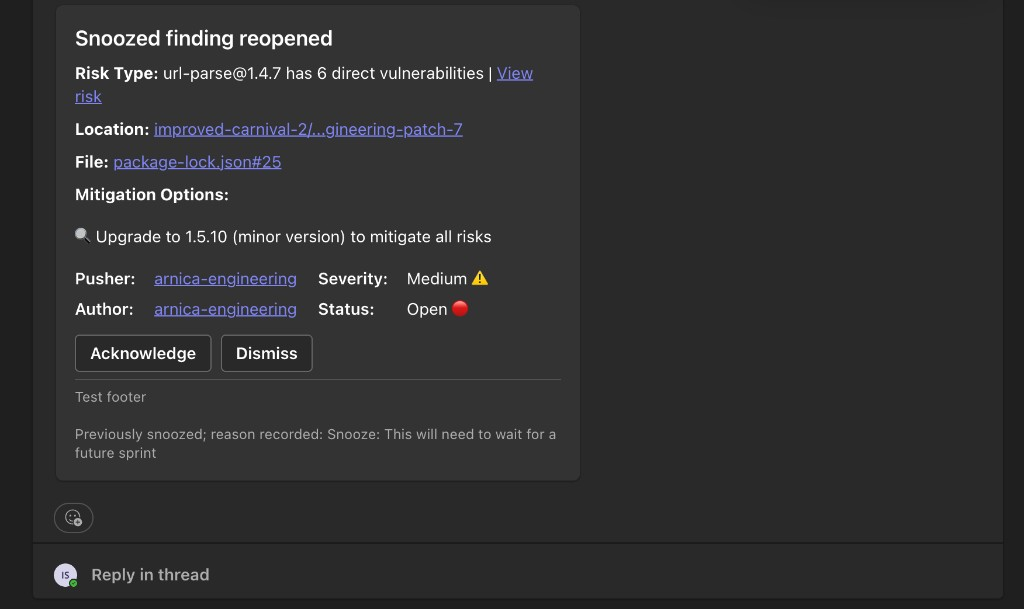
Example: ChatOps re-open notification (Microsoft Teams)

Microsoft Teams notification titled Snoozed finding reopened, including the previously recorded snooze reason
Microsoft Teams notification fired when a snoozed finding auto-reopens. The previously recorded snooze reason is included for context.

Behavior summary

Aspect
Behavior

Scope

Dismissal Settings apply globally to all findings (hardcoded secrets and code risks).

Tenant default

Snooze and Disable "No Capacity" dismissal status are off by default.

Snooze duration

Stored as a fixed expiration date on the finding; later policy changes do not affect already-snoozed findings.

Auto re-open

Performed by a scheduled background job at the stored expiration date.

Re-open notifications

Honor the option selected in Re-open notifications for snoozed findings; product-mapped routing reuses the existing Product Ownership mapping.

Backward compatibility

Tenants that do not enable Snooze see no change in dismissal behavior. Findings historically dismissed with No Capacity retain their status.

Last updated

Was this helpful?