Developer Feedback Loop
Generate AI SAST additional-prompt rules from dismissed findings to reduce false positives in future scans.
Summary
The Developer Feedback Loop analyzes findings that developers have previously dismissed (as false positives or risk-accepted) and uses an LLM to generate prevention rules that improve the accuracy of future Arnica AI SAST scans.
The generated rules are saved as additional-prompt text that Arnica appends to the prompt used by AI SAST. They can be saved at one of two scopes:
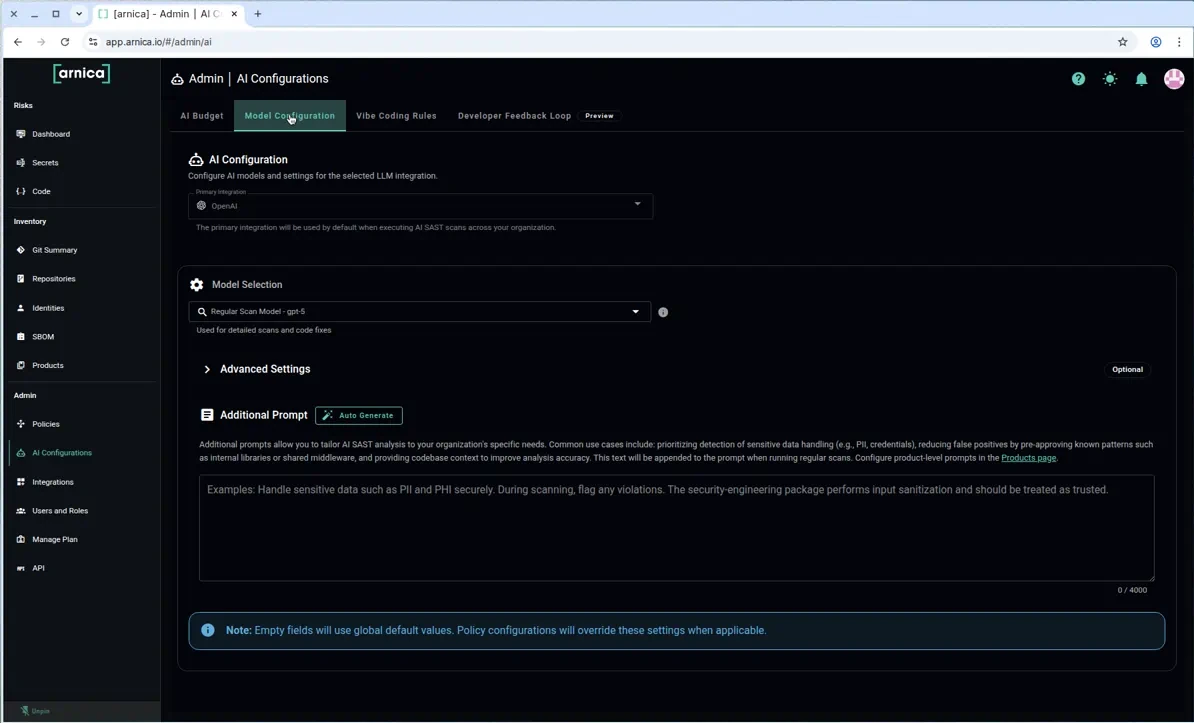
Global — appended to the Additional Prompt field on Admin → AI Configurations → Model Configuration. Applied to AI SAST scans across the tenant.
Per product — appended to the Additional Prompt field on the AI SAST tab of a product (Inventory → Products → product → AI SAST). Applied only to scans of that product.
The feature is currently labeled Preview.
The Auto Generate badge next to either Additional Prompt field is the entry point to the Developer Feedback Loop for that scope.
The Developer Feedback Loop is a different feature from Developer Feedback on Push. Developer Feedback on Push is a code-risk policy that surfaces findings to developers at push time. The Developer Feedback Loop only edits AI SAST additional prompts — it does not dismiss findings, change policies, or affect non-AI SAST scans.
How it works
Arnica queries dismissed SAST findings from the time window you configure (default: last 90 days).
The selected LLM analyzes the dismissals to identify recurring patterns — for example, framework-specific sanitizers, internal helper functions, or testing utilities — that consistently produce false positives.
Arnica produces a list of suggested rules, each with a confidence score and a scope (global rules apply across the tenant, while product rules apply only to a single product).
You review and select the rules you want to keep, and optionally preview the resulting prompt before saving.
When you save, the selected rules are appended as natural-language text to the corresponding Additional Prompt field — globally, per product, or both — and take effect on subsequent AI SAST scans.
Access
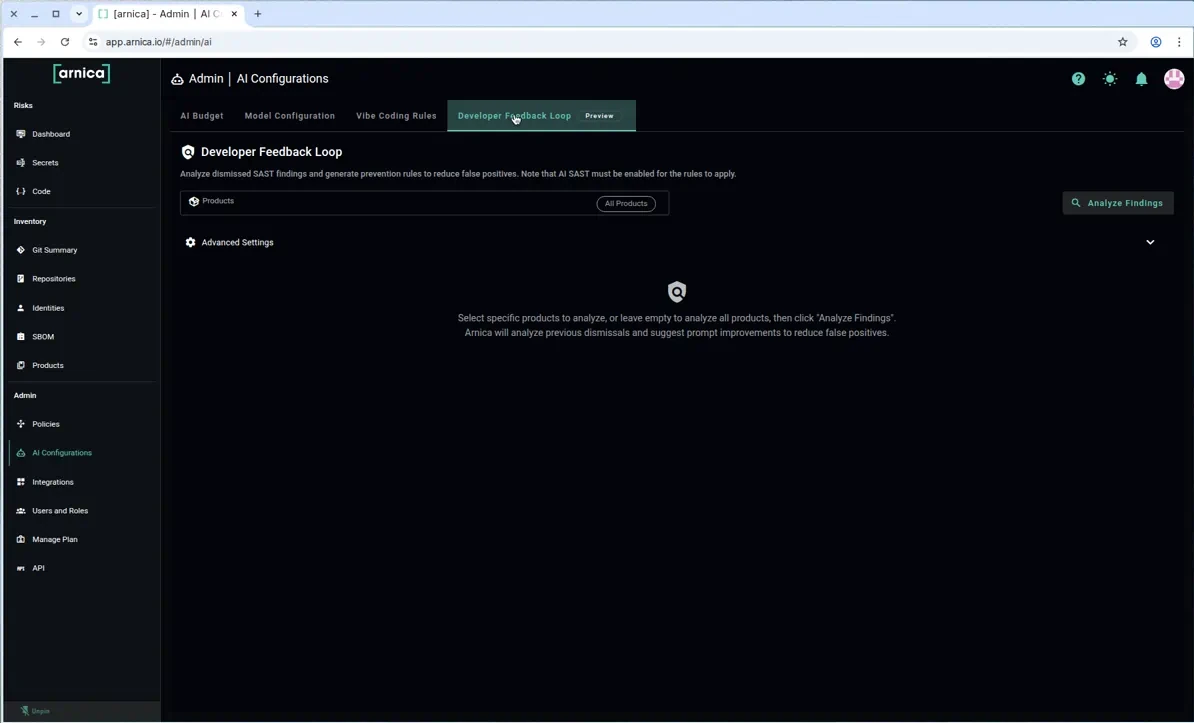
Navigate to Admin → AI Configurations → Developer Feedback Loop.

Run an analysis
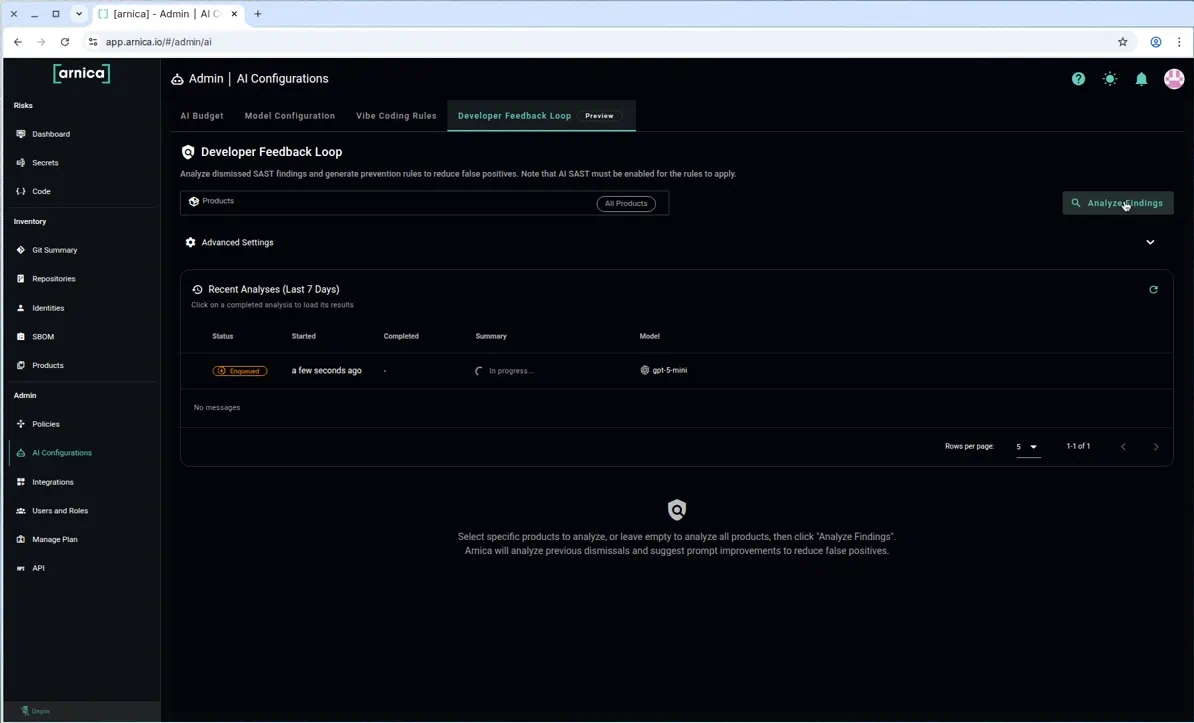
Use the Products selector to scope the analysis to one or more products, or leave it as All Products to analyze across the tenant.
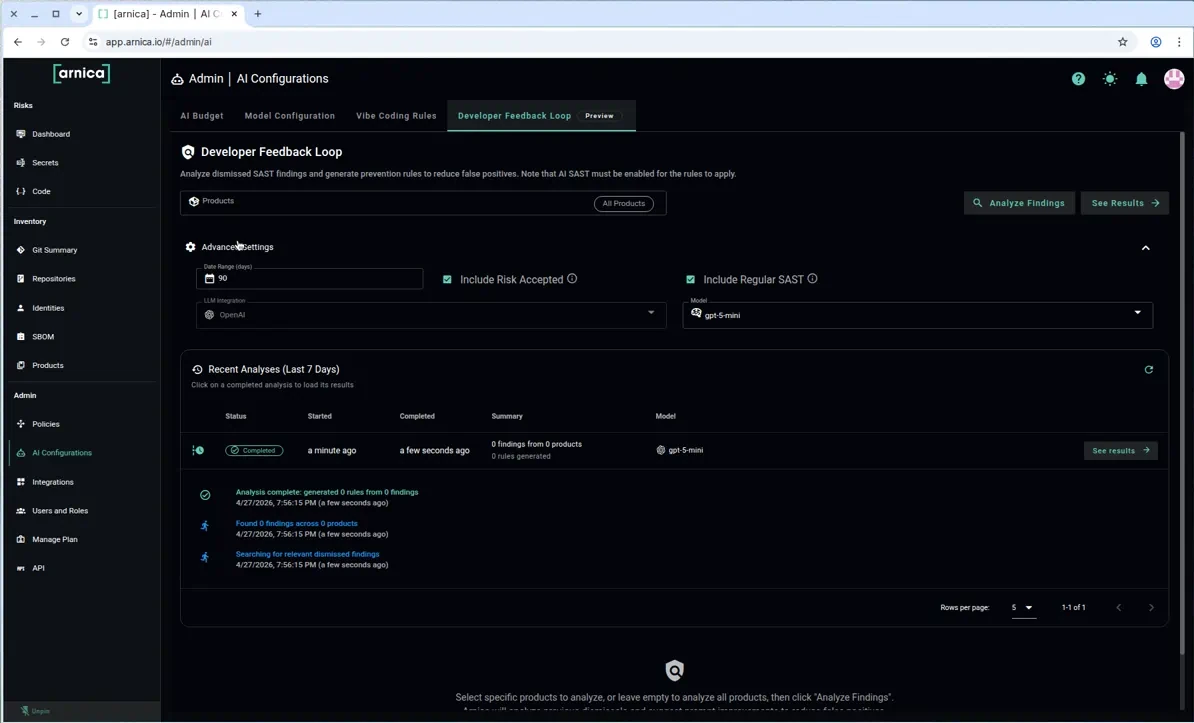
Expand Advanced Settings to fine-tune the analysis (see Advanced settings below).
Click Analyze Findings. The analysis is queued and runs against the configured LLM.
Track progress in the Recent Analyses (Last 7 Days) table. The status moves from Enqueued to In progress to Completed, and each row can be expanded to see step-by-step logs.

When the analysis completes, click See results in the Actions column to load the suggested rules.
Recent analyses are retained for 7 days so you can re-load their results without re-running the analysis (and re-spending AI tokens).
Advanced settings

Days Range
Number of days of dismissal history to include in the analysis. Defaults to 90.
LLM Integration
The AI provider used to analyze dismissals and generate rules. The default is the tenant's primary OpenAI integration. Any provider configured under Artificial Intelligence (Azure OpenAI, OpenAI ChatGPT, Anthropic, or Amazon Bedrock) can be selected.
The specific model used for each run is recorded in the Model column of the Recent Analyses table.
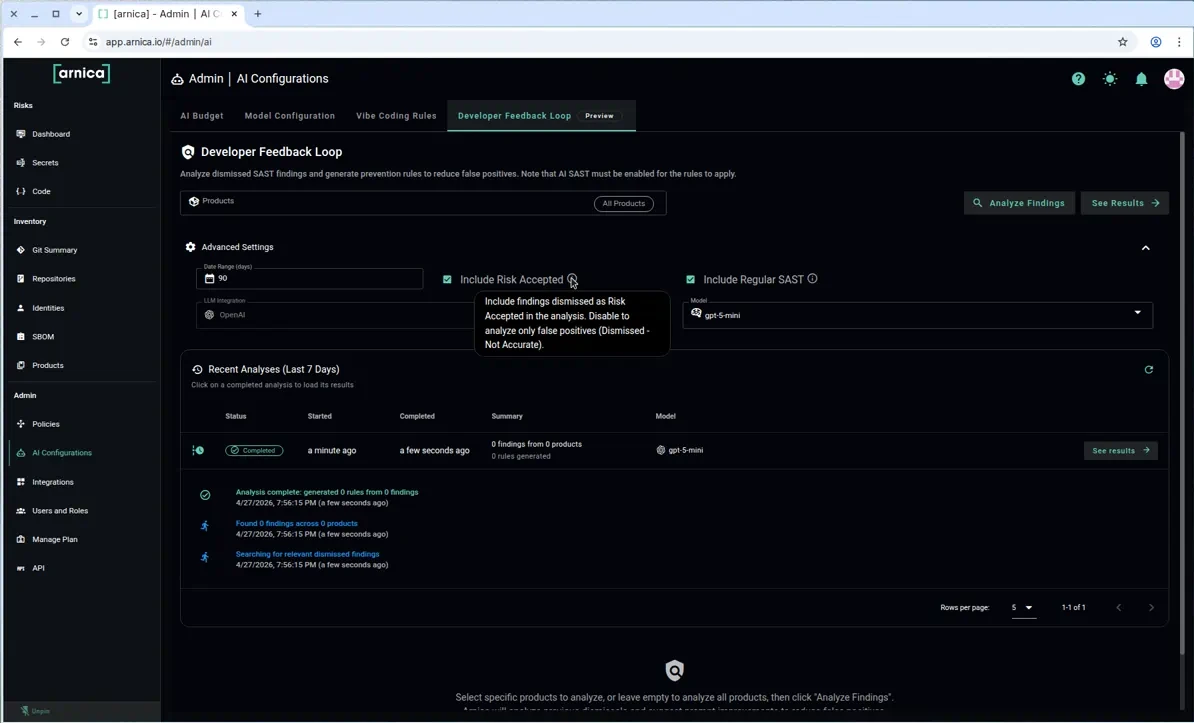
Include Risk Accepted
When checked, findings dismissed as Risk Accepted are included along with Dismissed – Not Accurate findings. Disable this to analyze only false positives.

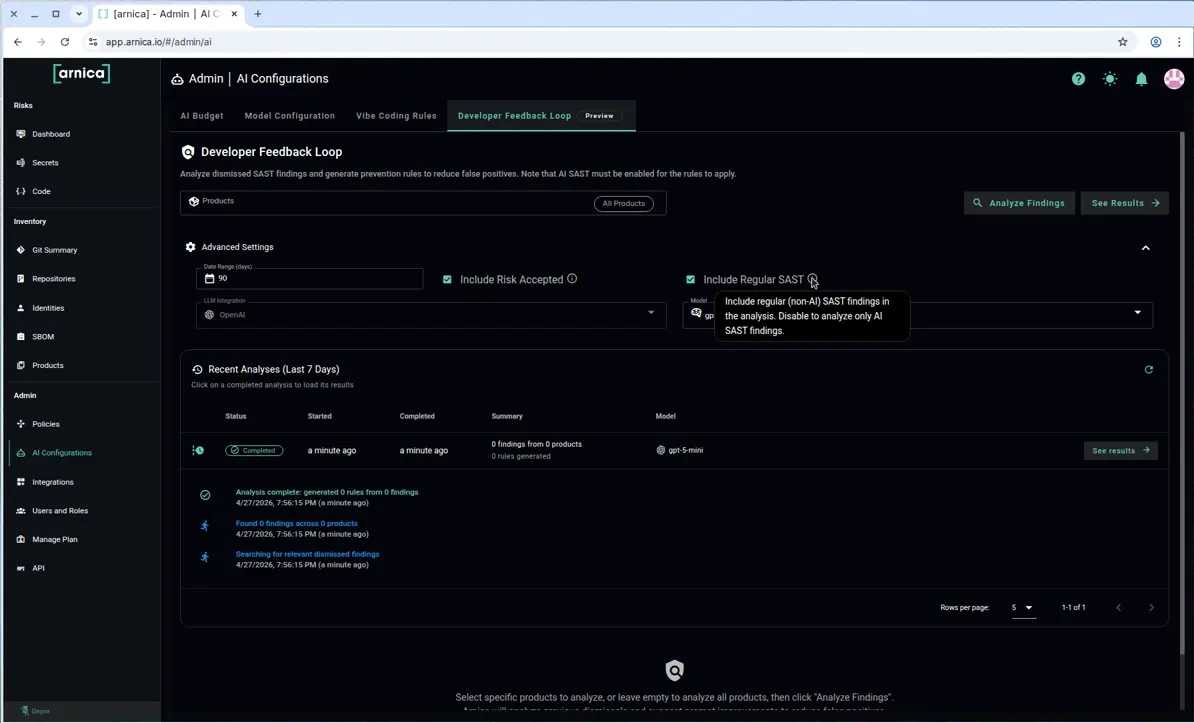
Include Regular SAST
When checked, both regular (non-AI) SAST findings and AI SAST findings are analyzed. Disable this to focus the analysis exclusively on AI SAST findings.

Review and save suggested rules
After loading results, the page displays the suggested rules along with the actions you can take on them.
The header summarizes the analysis (for example, Analyzed 117 findings across 1 product. Showing 53 global and 16 product rules.) and offers the following controls:
Start Over
Discard the current results and return to the configuration step.
Select All
Select every rule currently visible after filtering.
Clear Selection
Deselect all rules.
Preview
Show the resulting AI SAST prompt(s) with the selected rules applied, without saving anything.
Save Rules (N/M)
Save the N selected rules out of the M suggested rules. Each rule is appended to its target Additional Prompt field.
Minimum Confidence Filter
Each suggested rule receives a confidence score from the LLM. Use the Minimum Confidence Filter slider to hide rules below a chosen threshold (default: 70%). Lowering the threshold reveals more — but lower-quality — suggestions; raising it narrows the list to the strongest candidates.
Selecting and previewing rules
Tick the checkbox next to each rule you want to keep. Each suggested rule is tagged either global or with a specific product, indicating which Additional Prompt field it will be appended to when saved.
Click Preview at any time to see the resulting AI SAST prompt with the selected rules applied. Use the preview to confirm the rules behave as expected before persisting them.
Saving rules
Click Save Rules to commit the selected suggestions. Each rule is appended to its target Additional Prompt field and becomes active for the next AI SAST scan in scope:
Global rules are appended to Admin → AI Configurations → Model Configuration → Additional Prompt.

Global destination — Admin → AI Configurations → Model Configuration → Additional Prompt. Product rules are appended to the Additional Prompt field on the AI SAST tab of the corresponding product page (Inventory → Products → product → AI SAST).

Per-product destination — Inventory → Products → product → AI SAST → Additional Prompt.
Both fields display an Auto Generate badge that opens the Developer Feedback Loop pre-filtered for that scope, so you can re-run the analysis from the destination at any time.
You can edit, trim, or remove saved rules at any time directly in the corresponding Additional Prompt field — saved rules are plain text and are not stored as separate entities.
Developer Feedback Loop rules are not the same as Vibe Coding Rules. Vibe Coding Rules are stored as standalone AI Coding Assistant Rules under Admin → AI Configurations → Vibe Coding Rules and are used by AI coding assistants. Developer Feedback Loop rules are stored as additional-prompt text and only affect AI SAST scans.
Recent Analyses
The Recent Analyses (Last 7 Days) table records every run, including:
Status — Enqueued, In progress, Completed, or Failed
Started / Completed — relative timestamps for each phase
Summary — for example, 117 findings from 1 product / 69 rules generated
Model — the AI model that performed the run (for example,
gpt-5-mini)Actions — See results loads a completed run back into the review pane without re-running the analysis
Click any row to expand a detailed log of the run's stages (search, analysis, rule generation).
Empty result
If no dismissed findings match the configured filters, Arnica displays the notification "No dismissed findings found matching the criteria." Adjust the Days Range, the Include Risk Accepted / Include Regular SAST toggles, or the Products selector and re-run.
Related
Last updated
Was this helpful?