> For the complete documentation index, see [llms.txt](https://docs.arnica.io/arnica-documentation/llms.txt). Markdown versions of documentation pages are available by appending `.md` to page URLs; this page is available as [Markdown](https://docs.arnica.io/arnica-documentation/getting-started/artificial-intelligence/aws-bedrock.md).
# Amazon Bedrock
Amazon Bedrock integration setup for Arnica
Arnica uses Amazon Bedrock to provide code fix suggestions for SAST and IaC findings. Unlike the direct OpenAI or Anthropic integrations, Bedrock runs in your own AWS account.
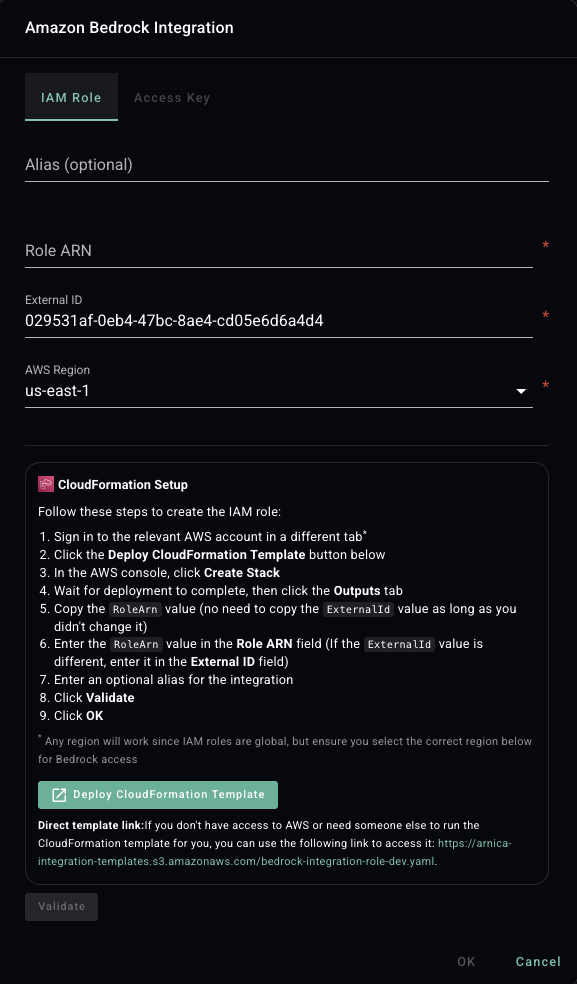
1. In Arnica, navigate to the [Integrations page](https://app.arnica.io/#/admin/integrations) and click **Connect** next to **Amazon Bedrock**.
2. Select the **AWS Region** where your Bedrock models are available.
## Recommended: IAM Role (CloudFormation)
We strongly recommend using an IAM Role instead of access keys. It is more secure (no long‑lived keys) and easier to manage.
* **If you have AWS access:**
1. In the integration dialog, keep the **IAM Role** tab selected.
2. Click **Deploy CloudFormation Template**.
3. In the AWS Console, click **Create Stack** to deploy the template. Any region works because IAM roles are global.
4. After the stack finishes, open the **Outputs** tab.
5. Copy the `RoleArn` value. You do not need to copy the `ExternalId` if you left it unchanged in Arnica.
6. Back in Arnica, paste the `RoleArn` into the **Role ARN** field (if you changed the `External ID` earlier, enter the updated value here).
7. (Optional) Enter an alias to help you recognize the integration.
8. Click **Validate**, then **OK**.
* **If you do not have AWS access:**
1. Copy the **Direct template link** and your **External ID** from the integration dialog:
* Template URL: `https://arnica-integration-templates.s3.amazonaws.com/bedrock-integration-role.yaml`
* External ID: use the value shown in Arnica. Keep this External ID so you can complete the integration later.
2. Ask your AWS administrator to deploy the template using that External ID (any region is fine) and to send you the `RoleArn` from the stack's Outputs.
3. When you receive the `RoleArn`, paste it into the **Role ARN** field in Arnica. If your admin used a different External ID, update the **External ID** field to match.
4. (Optional) Enter an alias, click **Validate**, then **OK**.
What permissions does the CloudFormation template grant?
The template creates an IAM role (`ArnicaBedrockIntegrationRole`) with the following permissions:
| Permission | Purpose |
| --------------------------------------- | --------------------------------------------------- |
| `bedrock:ListFoundationModels` | List models so Arnica can populate the model picker |
| `bedrock:GetFoundationModel` | Read model metadata |
| `bedrock:ListInferenceProfiles` | List inference profiles (cross-region) |
| `bedrock:GetInferenceProfile` | Read inference profile metadata |
| `bedrock:InvokeModel` | Call the selected model |
| `bedrock:InvokeModelWithResponseStream` | Call the selected model (streaming) |
The role can only be assumed by Arnica's AWS account, and the External ID is required to prevent [confused deputy attacks](https://docs.aws.amazon.com/IAM/latest/UserGuide/confused-deputy.html).
## Alternative: Access Key (not recommended)
Only use this method if you cannot use the IAM Role approach above.
1. Create an IAM user with the following permissions:
```json
{
"Version": "2012-10-17",
"Statement": [
{
"Effect": "Allow",
"Action": [
"bedrock:ListFoundationModels",
"bedrock:GetFoundationModel",
"bedrock:ListInferenceProfiles",
"bedrock:GetInferenceProfile"
],
"Resource": "*"
},
{
"Effect": "Allow",
"Action": [
"bedrock:InvokeModel",
"bedrock:InvokeModelWithResponseStream"
],
"Resource": [
"arn:aws:bedrock:*::foundation-model/*",
"arn:aws:bedrock:*:*:inference-profile/*"
]
}
]
}
```
2. In Arnica, switch to the **Access Key** tab, enter the **Access Key ID** and **Secret Access Key**, click **Validate**, then **OK**.
## Model selection
After connecting, Arnica pulls the list of models available in your account and selects a default model. To switch models, go to the [AI Model Configuration page](https://app.arnica.io/#/admin/ai-models-config) in the **Admin** menu.
{% hint style="info" %}
Most Bedrock models are accessible out of the box — you don't need to enable them one by one. If a model doesn't show up, see the [Amazon Bedrock model access docs](https://docs.aws.amazon.com/bedrock/latest/userguide/model-access.html) for any provider-specific or regional requirements.
{% endhint %}
{% hint style="warning" %}
**Anthropic (Claude) models** require a one-time use case form before first use. Open the [Bedrock console](https://console.aws.amazon.com/bedrock/), select any Anthropic model from the model catalog, and submit the use case form when prompted. Access is granted immediately. This only needs to be done once per AWS account — or once in the organization management account to cover all member accounts. See [Access Amazon Bedrock foundation models](https://docs.aws.amazon.com/bedrock/latest/userguide/model-access.html) for details.
{% endhint %}
## Usage
Recommendations are generated on demand rather than automatically for every finding, so you only pay for what you use.
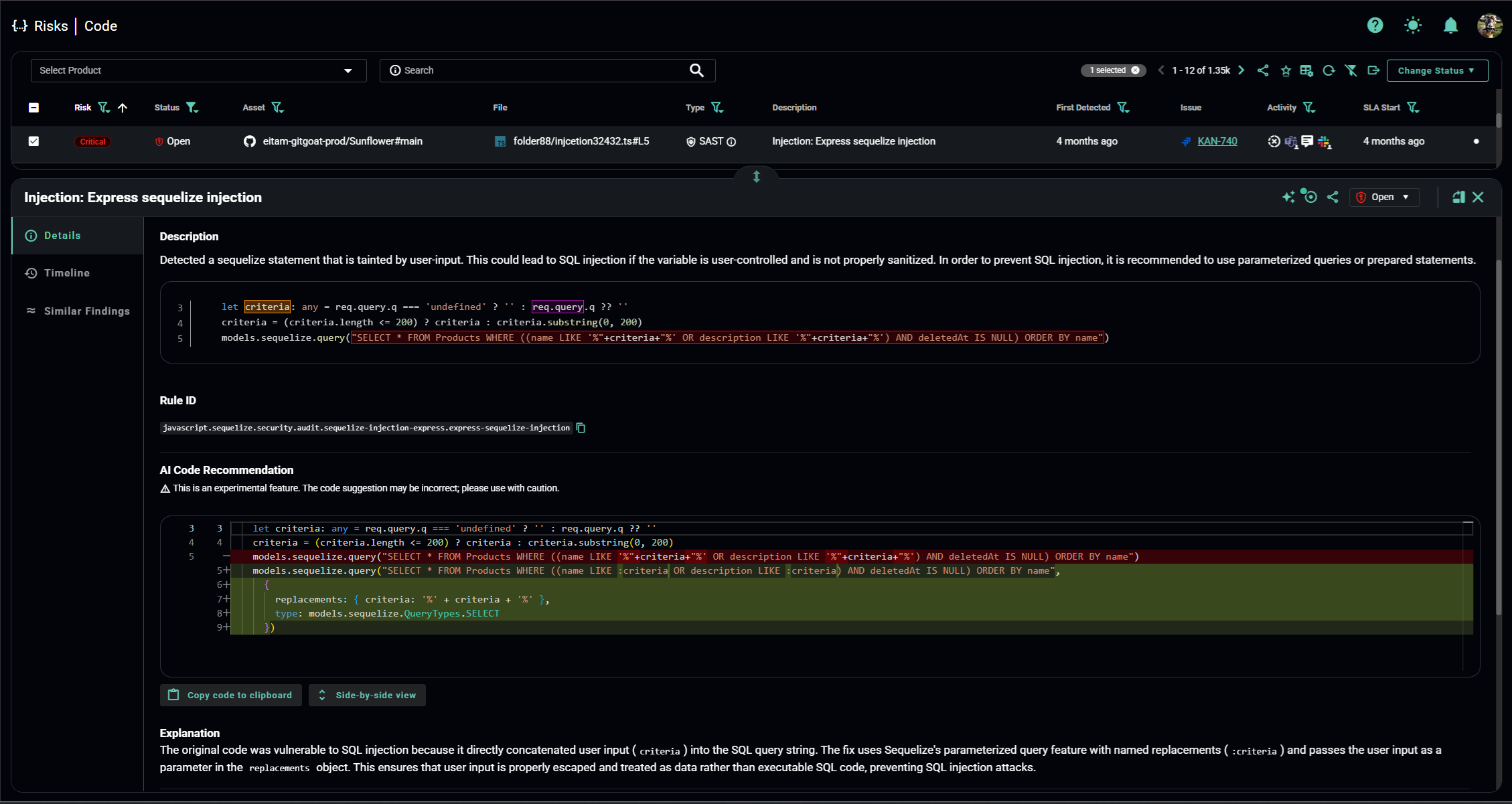
To request a recommendation, go to the [Code Risks](https://app.arnica.io/#/risks/code/) page and select a SAST or IaC finding. Click the AI icon in the top-right corner of the details pane. The icon spins while Arnica generates and validates the recommendation.
{% hint style="info" %}
To generate an alternative recommendation, click the AI icon again.
{% endhint %}
Each recommendation includes a code example followed by an explanation, so the fix is clear for both developers and Arnica operators.