> For the complete documentation index, see [llms.txt](https://docs.arnica.io/arnica-documentation/llms.txt). Markdown versions of documentation pages are available by appending `.md` to page URLs; this page is available as [Markdown](https://docs.arnica.io/arnica-documentation/getting-started/chatops/microsoft-teams/adding-arnica-to-a-team-or-channel.md).
# Adding Arnica to a Team or Channel
Add the Arnica bot to a Microsoft Teams team or channel so Arnica can post findings there
## Overview
Installing the Arnica app gives every user a private chat with the Arnica bot. To send findings to a shared destination — for example a security review channel or a squad's channel — the bot must also be added to the team and channel.
{% hint style="warning" %}
The Arnica Teams App must already be installed and connected to your Microsoft tenant, as described in [Integrating with Microsoft Teams](/arnica-documentation/getting-started/chatops/microsoft-teams.md#integrating-with-microsoft-teams).
Add Arnica to the **team** before adding it to a specific channel. Arnica records a channel only once it knows the team that contains it, so a channel added first is not saved and does not appear in the recipient list.
{% endhint %}
## Adding Arnica to a team or channel
1. Navigate to the **Teams** tab in the Teams sidebar.
2. Select the team or channel to add Arnica to and start a new post.
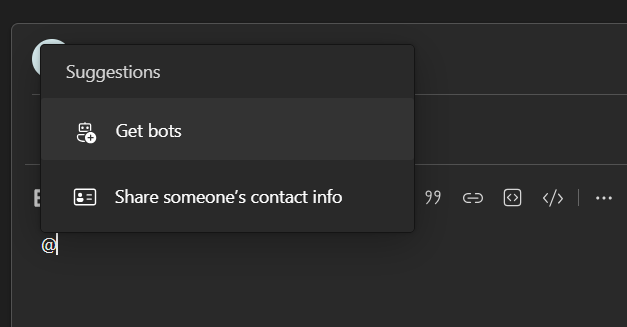
3. Type `@` and select **Get bots**.
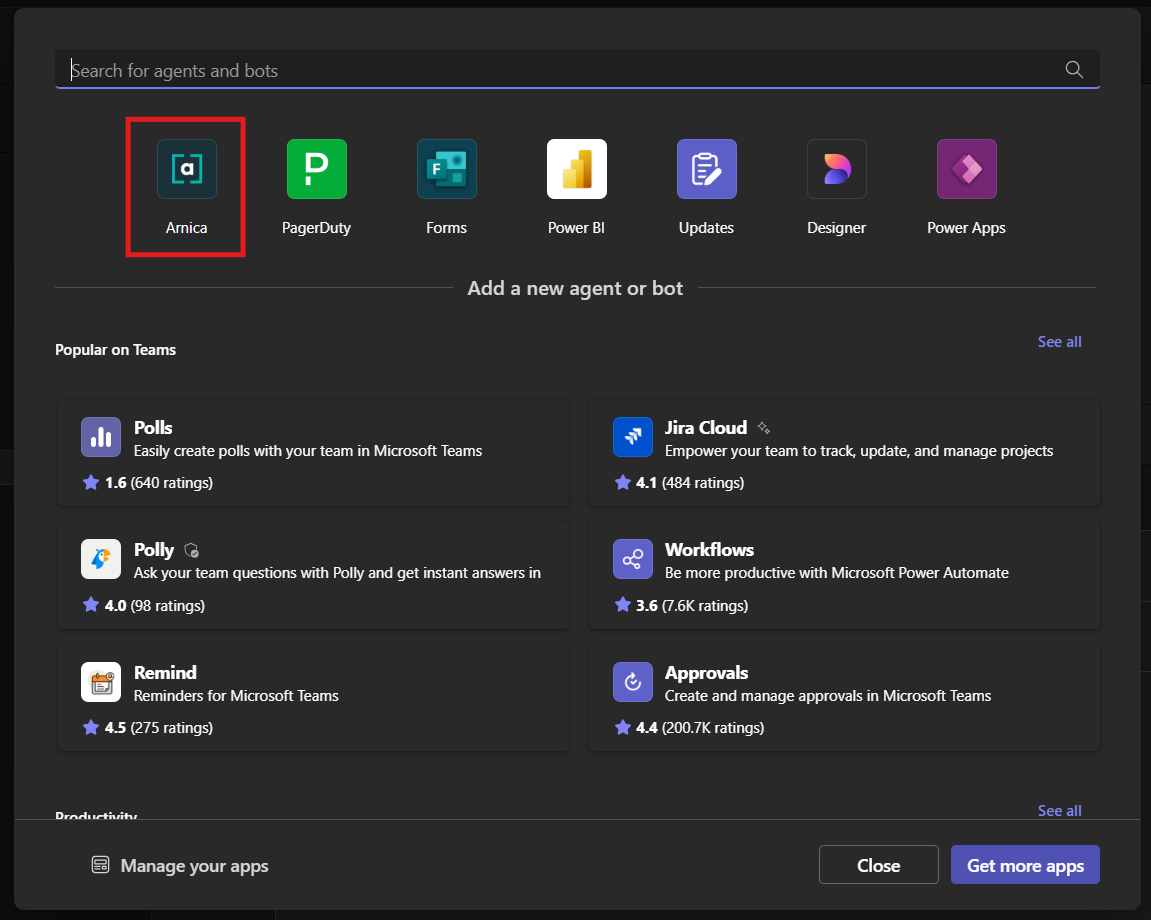
4. Search for and select the Arnica bot — **Arnica**, or **Arnica EU** for tenants hosted in the European Union.
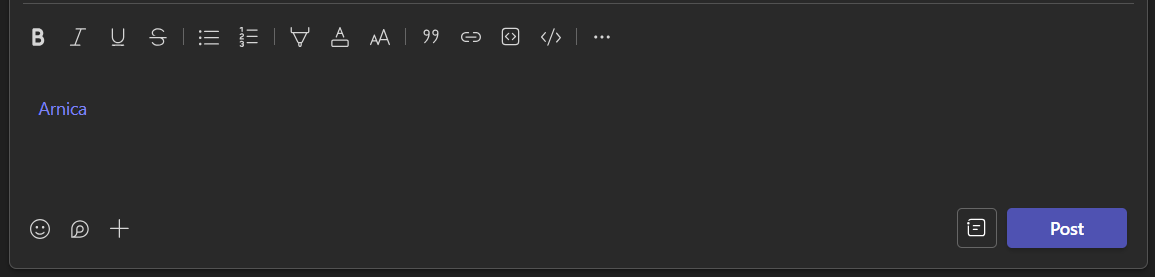
5. Arnica is now mentioned in your post.
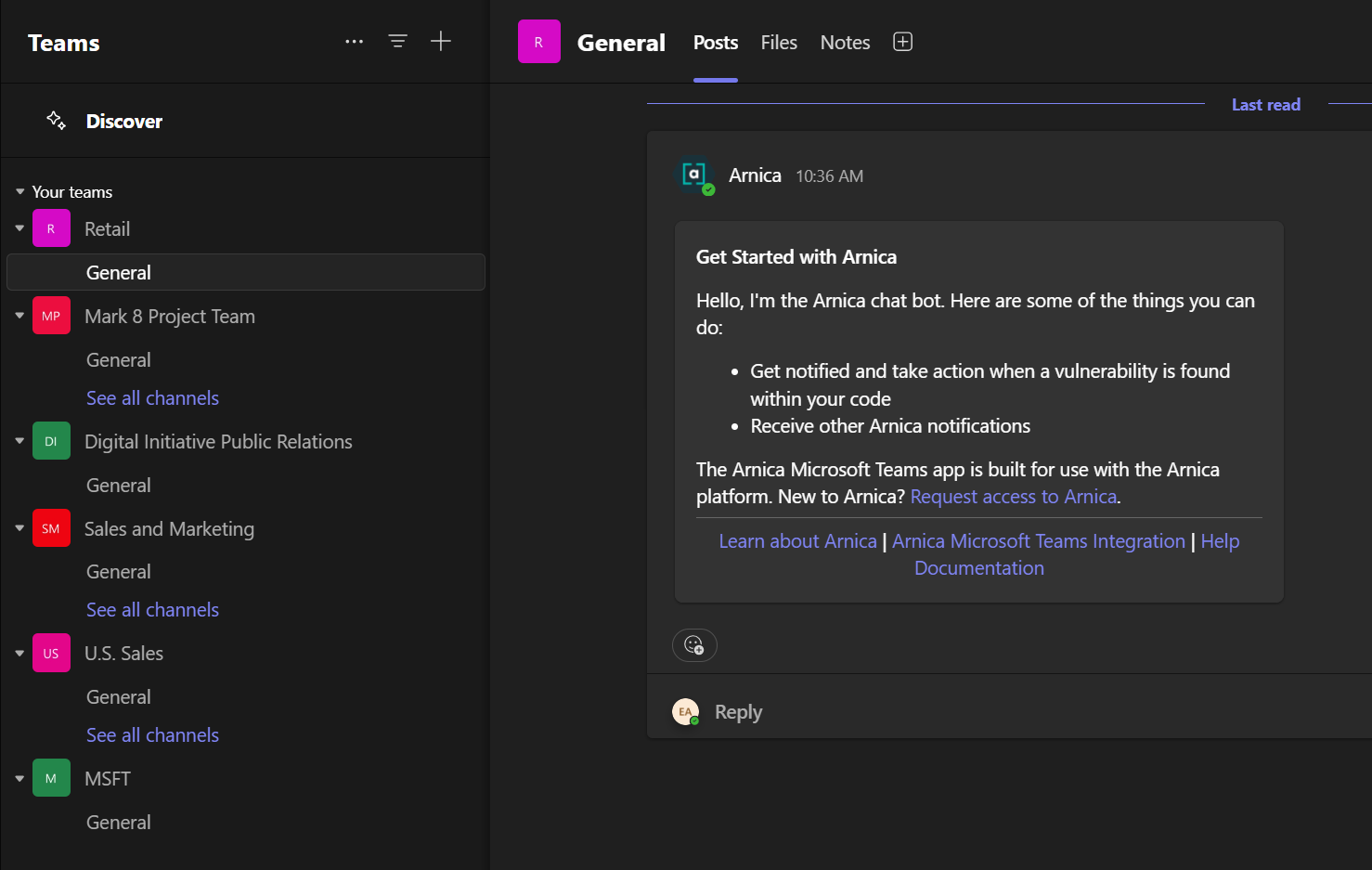
6. Send the post. Arnica joins the team or channel.
{% hint style="info" %}
Adding the Arnica bot to public channels may result in Arnica declining the invitation. If Arnica does not post a "Get Started" message in the chat, try inviting the bot to a private team.
{% endhint %}
## Where teams and channels appear in Arnica
Arnica's notification recipient list is built from the Teams destinations it has already seen, not from every channel in Microsoft Graph:
* A **channel** appears once Arnica has been added to its team and has seen activity in that channel.
* Selecting a **team** rather than a specific channel delivers notifications to that team's **General** channel.
* A **user** appears once that user has interacted with the Arnica bot at least once.
Channels are listed as `/`, so the same channel name in two different teams stays distinguishable.
{% hint style="info" %}
Deleting a channel in Teams does not remove it from Arnica's recipient list, and uninstalling the app does not remove saved destinations. Remove the Microsoft Teams integration on the [Integrations page](https://app.arnica.io/#/admin/integrations) to clear everything Arnica saved for the Microsoft tenant.
{% endhint %}
## Related topics
* [Microsoft Teams integration overview](/arnica-documentation/getting-started/chatops/microsoft-teams.md)
* [Interacting With the Arnica Teams Bot](/arnica-documentation/getting-started/chatops/microsoft-teams/interacting-with-the-arnica-teams-bot.md)
* [Operational Guidance](/arnica-documentation/getting-started/chatops/microsoft-teams/operational-guidance.md)