> For the complete documentation index, see [llms.txt](https://docs.arnica.io/arnica-documentation/llms.txt). Markdown versions of documentation pages are available by appending `.md` to page URLs; this page is available as [Markdown](https://docs.arnica.io/arnica-documentation/getting-started/chatops/microsoft-teams/interacting-with-the-arnica-teams-bot.md).
# Interacting With the Arnica Teams Bot
Commands and finding actions available in the Arnica Microsoft Teams bot
## Overview
Once the Microsoft tenant is connected, developers work with Arnica in Teams in two ways: by sending the bot a command, and by acting on the finding cards Arnica posts.
## Commands
In a private chat with the bot, type the command on its own. In a channel, mention the bot first, for example `@Arnica risks mine`.
| Command | What it does |
| --------------- | --------------------------------------------------------------------------- |
| `help` | Lists the commands the bot supports. |
| `risks help` | Lists the available risk commands. |
| `risks mine` | Returns a secure link to the code risks where you are the author or pusher. |
| `risks product` | Returns a secure link to the code risks for the products you own. |
{% hint style="info" %}
Microsoft Teams commands are plain words, with no leading slash. The slash-command forms shown in some Slack examples do not apply to Teams.
{% endhint %}
{% hint style="warning" %}
The links returned by `risks mine` and `risks product` are personal. Anyone who opens a shared link can comment on and change the status of those risks on your behalf, so do not forward them.
{% endhint %}
If Arnica does not recognize a message, it replies with a prompt to type `help`.
## Acting on code risk findings
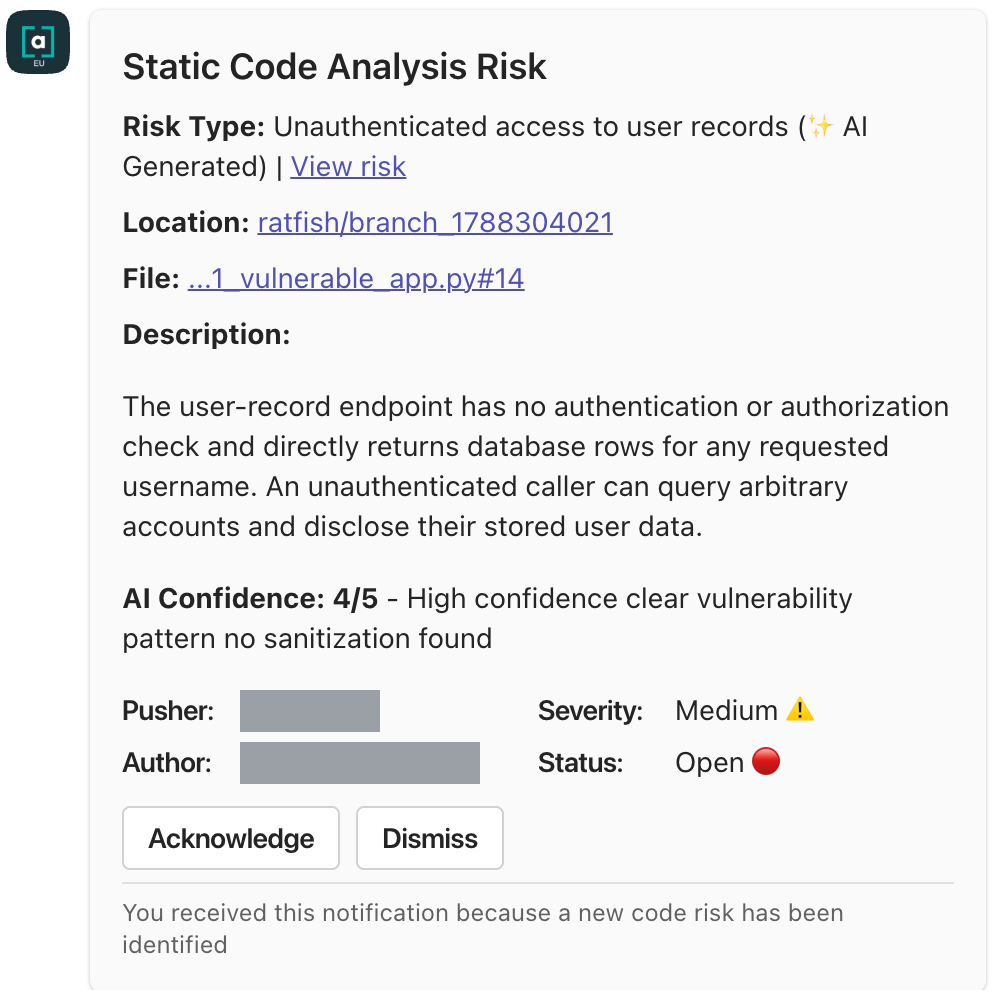
When a policy routes a code risk to Teams, Arnica posts an Adaptive Card that identifies the risk and links back to the full context in Arnica. The card includes the risk type and title, the location and file, the description, the severity and current status, and the pusher and author. A pull request link, a recommendation, and reference links are included when the finding has them, and findings surfaced by AI analysis also show an AI confidence rating.
From the card, a developer can:
* **Acknowledge** — record that the risk is being worked on.
* **Dismiss** — close the finding with a justification.
{% hint style="info" %}
When the policy rule that sent the notification has **Dismissals Require Review** enabled, the button reads **Dismiss (requires review)** instead, and the finding stays open until a reviewer approves the dismissal. See [Require Review Before Dismissal](/arnica-documentation/code-risks/code-risk-policy-settings/require-review-before-dismissal.md).
{% endhint %}
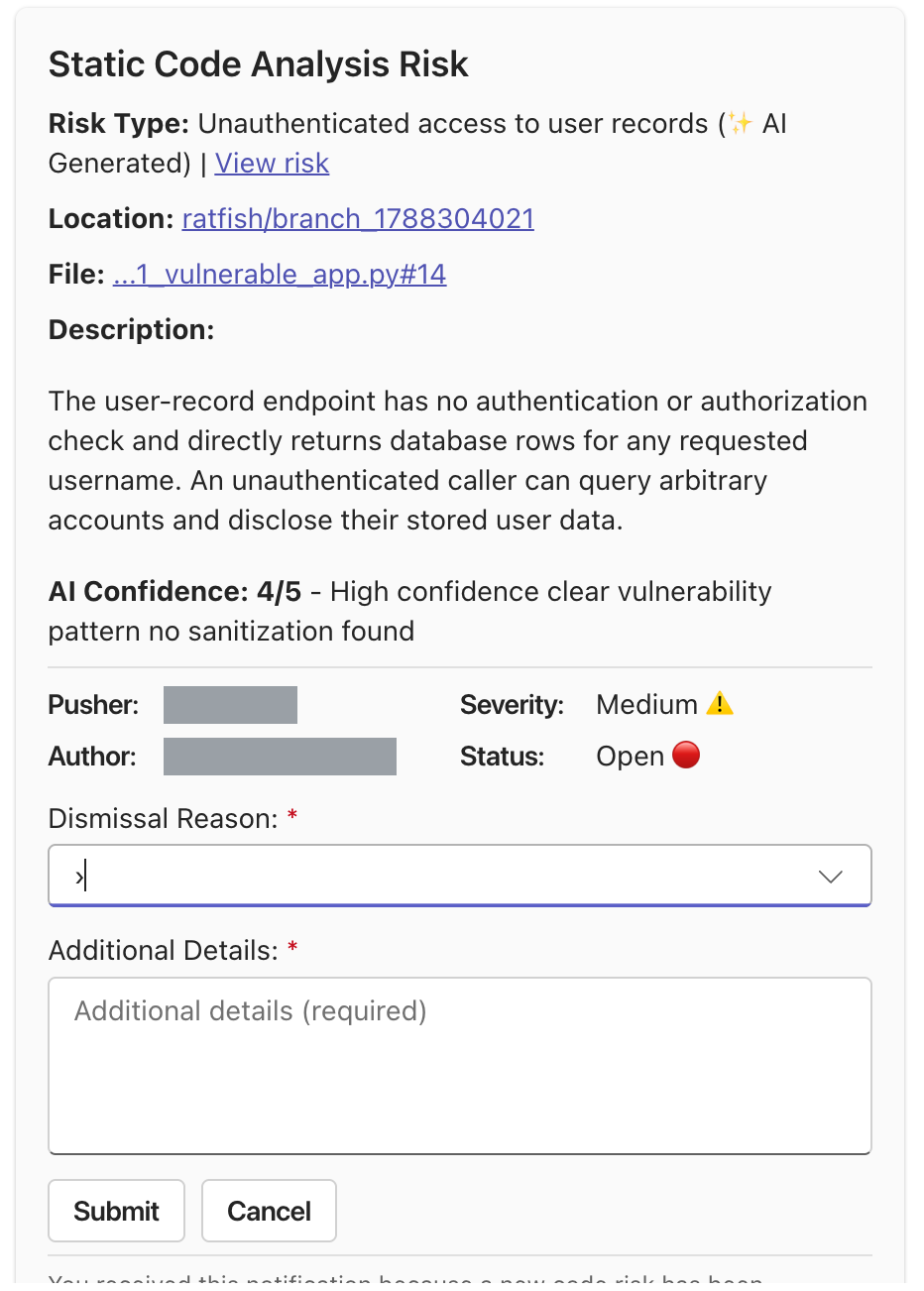
Selecting **Dismiss** prompts for a reason:
| Reason | Meaning |
| ----------------- | ---------------------------------------------------------------------------------- |
| Not Accurate | The finding is a false positive. |
| Risk is Tolerable | The risk is understood and accepted. |
| No Capacity | There is no capacity to address the risk now. Available when the policy allows it. |
| Snooze | Suppress the finding temporarily. Available when the policy allows it. |
Both **Dismissal Reason** and **Additional Details** are required, and the dismissal is not recorded until **Submit** is selected. **Cancel** closes the form and leaves the finding as it was.
Once submitted, Arnica records who requested the dismissal from Teams and processes it through the same policy workflow as a dismissal made in the application.
## Acting on secret findings
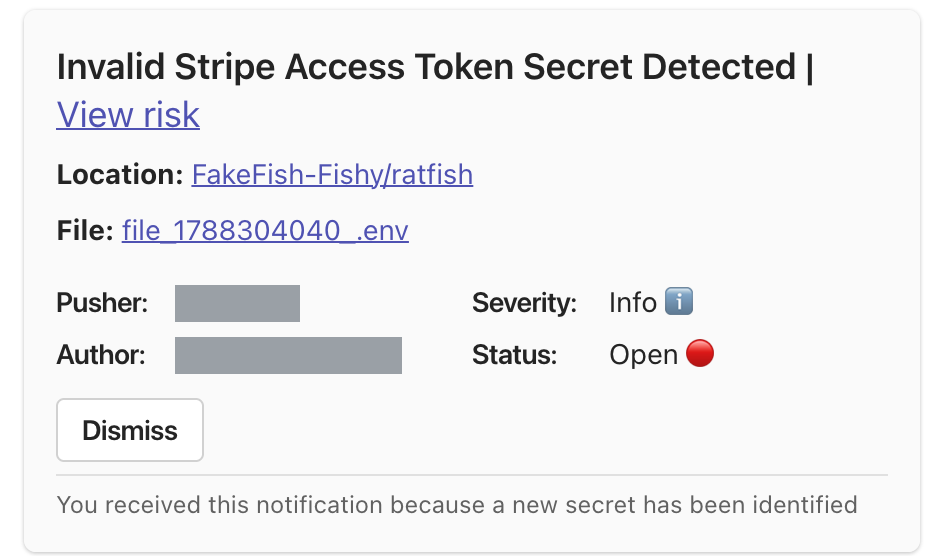
Secret cards identify the secret type, the location and file, the severity and status, and the pusher and author. They support the same dismissal reasons as code risk cards, but offer only **Dismiss** — there is no acknowledge action on a secret.
When secret mitigation resets a branch, Arnica posts a follow-up card reporting whether the reset succeeded, linking to the mitigated branch, and providing the local Git commands for syncing to it.
## Reviewing dismissal requests
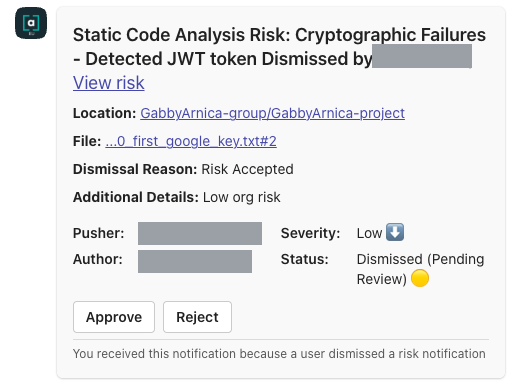
When a dismissal requires review, a policy with the **User Dismissed Finding via ChatOps** trigger routes it to the configured reviewers. Arnica notifies them in Teams with a card naming the developer who requested the dismissal, the reason and additional details they submitted, and a status of **Dismissed (Pending Review)**. From it, a reviewer can:
* **Approve** the dismissal.
* **Reject** it, optionally with details explaining why.
Arnica records the reviewer identity from Teams and updates the original finding card so the status stays accurate for everyone who saw it.
## Card updates
Arnica keeps Teams cards current. When a finding is resolved, dismissed, snoozed, approved, or rejected — whether the change was made in Teams, in Slack, or in the Arnica application — Arnica updates the original card in place, or replies in the same thread when the card cannot be updated.
## Related topics
* [Microsoft Teams integration overview](/arnica-documentation/getting-started/chatops/microsoft-teams.md)
* [Adding Arnica to a Team or Channel](/arnica-documentation/getting-started/chatops/microsoft-teams/adding-arnica-to-a-team-or-channel.md)
* [Interacting With the Arnica Slackbot](/arnica-documentation/getting-started/chatops/slack/interacting-with-the-arnica-slackbot.md)
* [Operational Guidance](/arnica-documentation/getting-started/chatops/microsoft-teams/operational-guidance.md)