For the complete documentation index, see llms.txt. This page is also available as Markdown.

📐Linear

Linear integration setup for Arnica

Connect Arnica to your Linear workspace. Once connected, you can use Linear as the issue tracker for Manual Issue Creation and Automated Issue Creation.

Integration Steps

Create a dedicated service account

Arnica authenticates to Linear with an API key. An API key inherits the access of the Linear user who created it, so use a dedicated service account instead of a personal account - this ensures the integration keeps working if the original user leaves.

  1. Create a dedicated email address (e.g. arnica-linear@yourcompany.com). Use a shared inbox or alias so access is not tied to a specific person.

  2. Invite the email to your Linear workspace and complete the account setup from the invitation email.

  3. Add the service account to every Linear team that should receive Arnica issues.

Arnica can only create issues in teams the service account can access. If you add a new Linear team later, add the service account to it as well.

Create a Linear API key

  1. Sign in to Linear as the service account - not your personal account.

  2. Go to Settings - Security & access and create a new API key.

  3. Give the key a descriptive name, e.g. Arnica.

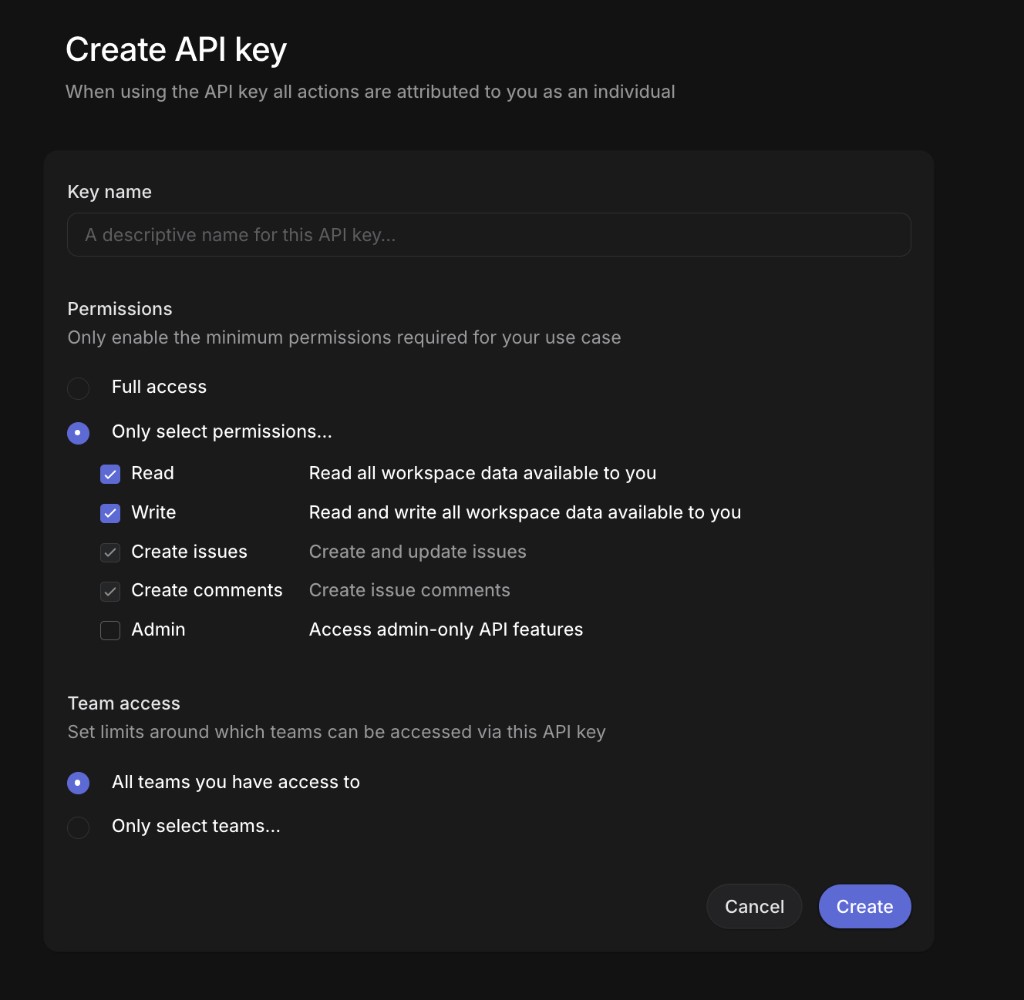
  4. Under Permissions, select Only select permissions and enable both Read and Write. Arnica needs Read to list teams, issue templates, and workflow states, and Write to open and update issues. Admin is not required.

  5. Under Team access, make sure the key can reach every Linear team that should receive Arnica issues - either keep All teams you have access to, or choose Only select teams and select them explicitly.

  6. Click Create, then copy the key. Linear displays it only once.

Linear Create API key dialog with the Read and Write permissions enabled
Enable both Read and Write when creating the API key
Enabling Write automatically includes Create issues and Create comments.

Linear-side access is the primary requirement for issue creation. The Arnica user configuring the integration should have at least Admin permissions in Arnica.

Integrate Linear with Arnica

  1. In Arnica, navigate to Admin - Integrations.

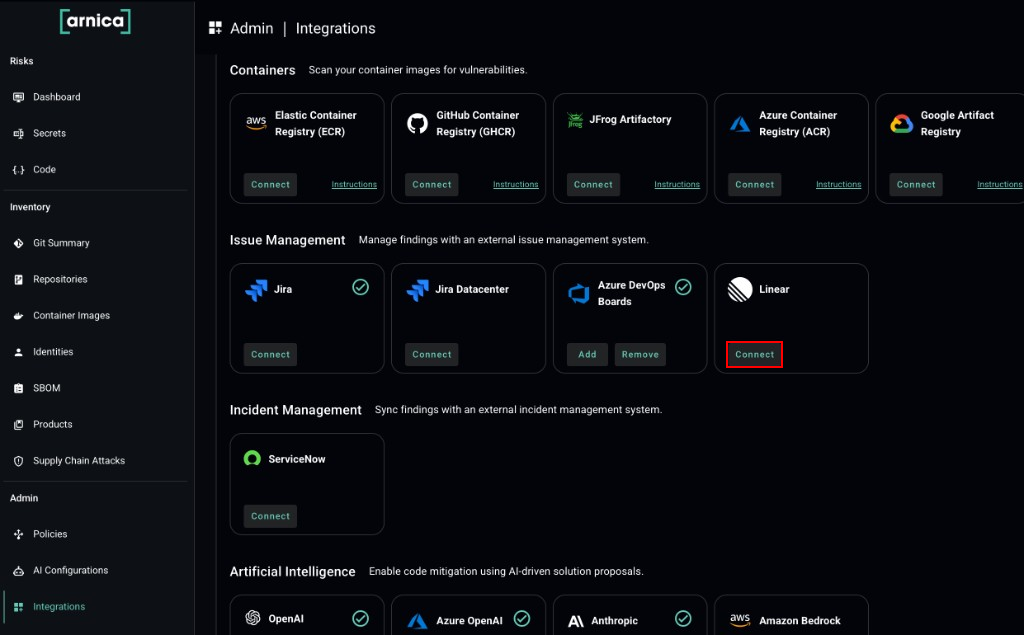
  2. Locate Linear under Issue Management and click Connect.

Linear listed under Issue Management on the Integrations page
Locate Linear under Issue Management and click Connect
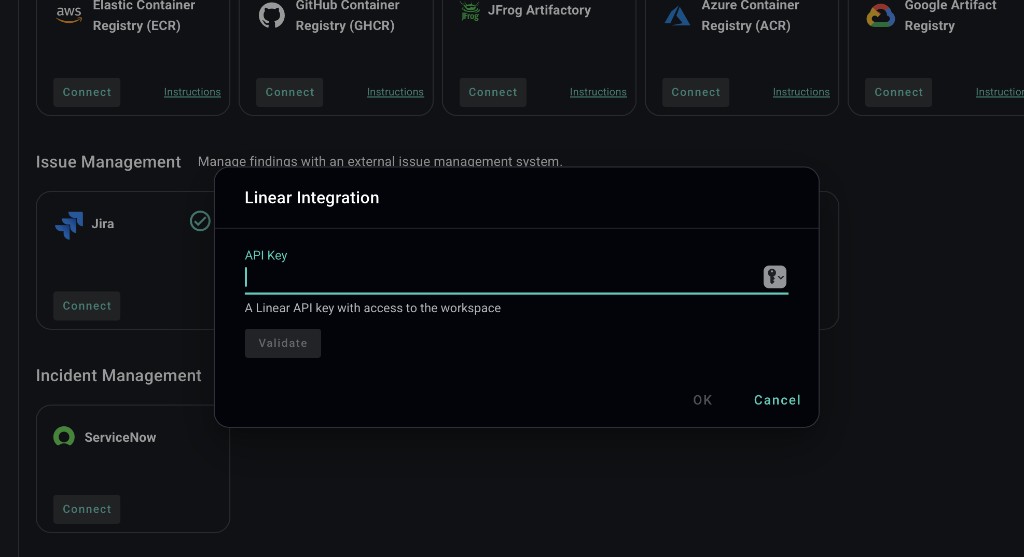
  1. Paste the key into the API Key field and click Validate.

Linear Integration dialog with the API Key field and Validate button
Paste the Linear API key and click Validate
  1. Click OK to complete the integration.

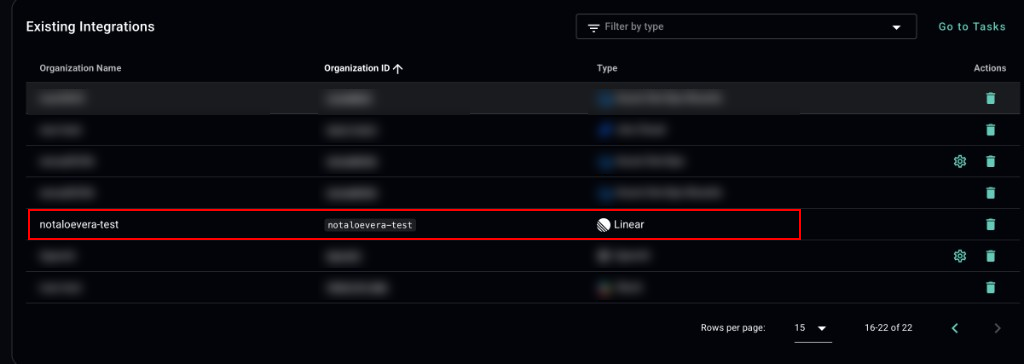
  2. If the integration was successful, the workspace will appear under the Existing Integrations section in Arnica.

Linear workspace listed in the Existing Integrations table
Linear connected and listed under Existing Integrations
Repeat for each additional Linear workspace.

How Linear maps to issue rules

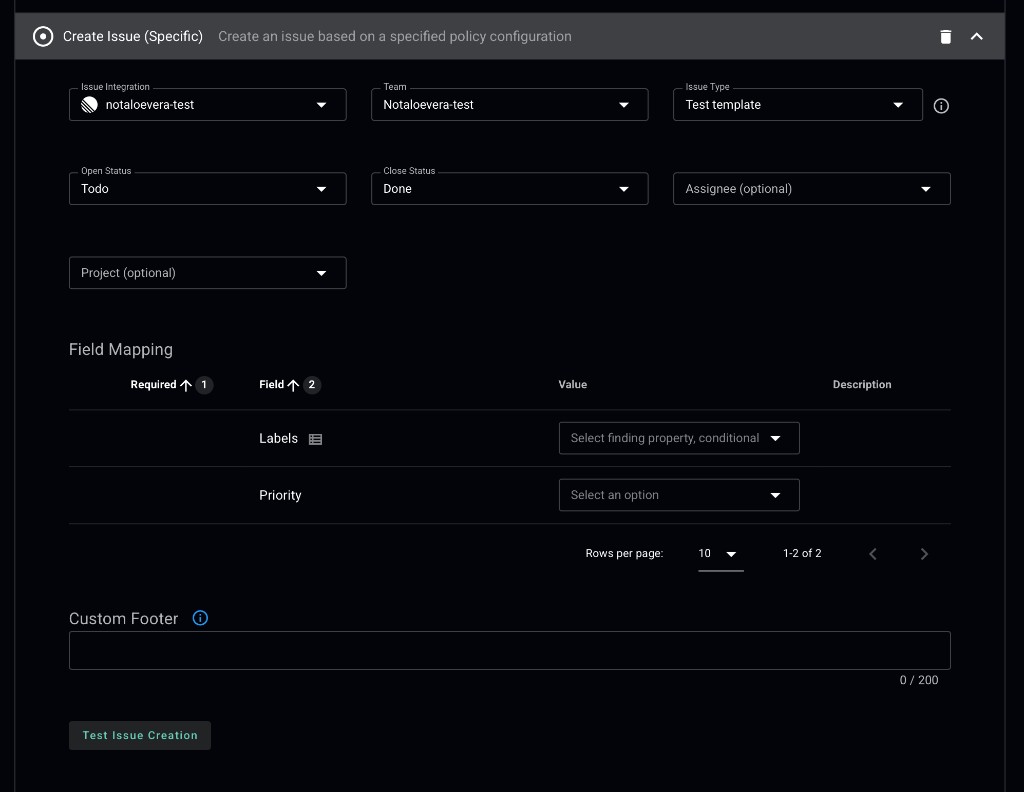
Linear uses the same Create Issue Rule form as Jira and ADO Boards, in both Admin - Policies and the Issue Management tab of an Arnica product. Only the terminology of the target container differs:

Arnica field
Jira / ADO Boards
Linear

Target container

Project

Team

Issue Type

Issue type / work item type

Linear issue template

Open Status / Close Status

Workflow statuses

Linear workflow states

The Team selector is a searchable list - select the Linear team explicitly before saving the rule. Assignee and Project are optional; use Project to file the issues in a specific Linear project within the selected team.

Create Issue rule configured with a Linear team, issue type, and status mapping
A Create Issue rule targeting a Linear team

Field mapping, custom footers, and Test Issue Creation behave the same as they do for Jira and ADO Boards. See Manual Issue Creation and Automated Issue Creation for the full configuration steps.

As with all issue management integrations, Arnica is the source of truth for finding resolution. Arnica transitions the Linear issue to the configured close status when the finding is resolved, but closing a Linear issue manually does not resolve the finding in Arnica. See How Arnica manages the full issue lifecycle.

Remove a Linear Integration

  1. Navigate to Admin - Integrations.

  2. Find the Linear workspace you want to remove.

  3. Click the trash icon next to the workspace.

  4. Confirm the removal.

Last updated

Was this helpful?